Plugins in AliothPress: Install, Update, and Manage Extensions Right in the Browser
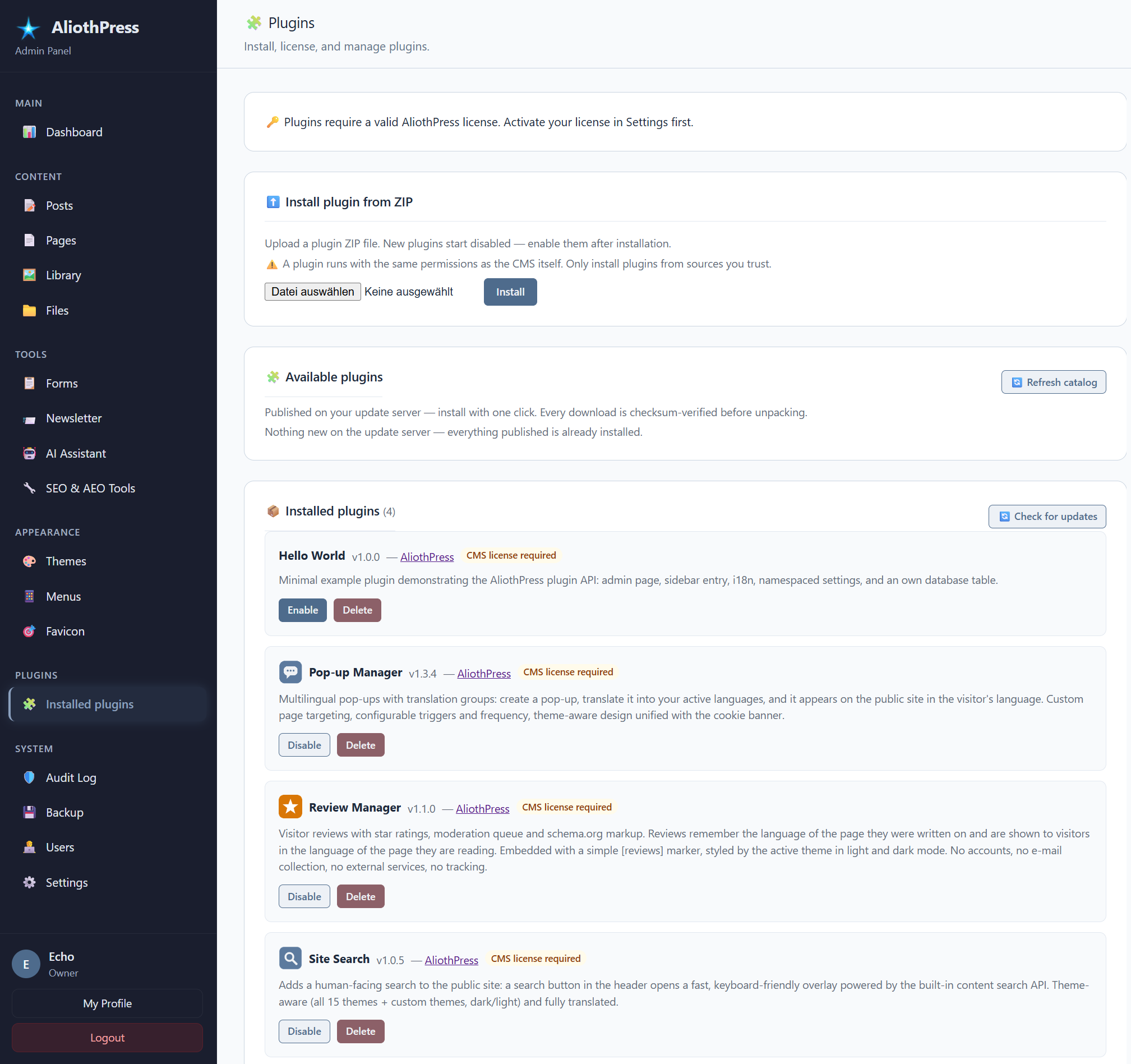
AliothPress supports installable plugins. A plugin adds new features to your site: its own admin pages, its own database tables, and its own translations. You install a plugin with one click from the built-in catalog or from a ZIP file, enable it, and the CMS handles the rest, including a safe automatic restart. When a new version of an installed plugin is released, the update appears right on the plugin card, with its changelog, and installs with one click. Plugins run only on licensed installations, and everything described here works without a terminal or a file manager.
What a plugin is
A plugin is a self-contained folder of code that extends the CMS. It can add pages to your admin sidebar, store its own data, and ship its own interface translations. The core of AliothPress already covers a complete website: posts, pages, a page builder, menus, forms, newsletters, SEO, and 31 admin languages. Plugins are for going beyond that, for features specific to your project.
Every AliothPress installation includes a small example plugin called Hello World. It exists so you can see the mechanics in action and so developers have a working template to copy.
Requirements
Plugins require a valid AliothPress license. On an unlicensed installation the plugin pages stay visible, but no plugin code loads. Managing plugins (installing, enabling, deleting) is available to the site owner account. Invited admins and editors see and use the plugin pages in the sidebar, but they cannot install or remove code. This keeps control of executable code with the person who owns the site.
Installing a plugin
- Open Plugins in the admin sidebar.
- Scroll to Install plugin from ZIP and choose the plugin's ZIP file.
- Click Install.
The plugin appears in the list in a disabled state. New plugins never activate themselves.
Installing from the catalog
The Plugins page also shows an Available plugins block: a catalog of plugins published for your installation, each with its icon, description, and version. One click installs a catalog plugin through the same checksum-verified pipeline that updates use, no file to download and re-upload. Plugins installed from the catalog also receive their updates automatically on the plugin card. The ZIP form remains for everything distributed outside the catalog.
A note on trust: a plugin runs with the same permissions as the CMS itself. Install plugins only from sources you trust. The same rule applies to any software you add to any server.
Enabling, disabling, and the automatic restart
Click Enable on the plugin card. The CMS schedules a graceful restart, the same mechanism used after core updates, and the site is back within a few seconds. While the restart runs, the page shows a calm progress notice and reloads itself once the server is reachable again. After the restart the plugin's pages appear in the sidebar under the Plugins section.
Disabling works the same way. A disabled plugin stays installed but none of its code runs. If your server setup does not support automatic restarts, the page shows a clear notice and a restart button.
Updating a plugin
Plugin updates arrive in the admin panel. The CMS checks for plugin updates automatically once a day when you open the Plugins page, and a Check for updates button runs the check on demand. When a newer version exists, the plugin card shows it along with the changelog; one click downloads the update, verified against its checksum, installs it, and schedules the restart. Your settings and data are kept.
The ZIP form keeps working too: uploading a newer version by hand replaces the plugin's files the same way, which is also how you update plugins that are not distributed through an update server.
Core CMS updates never touch your installed plugins: the updater deliberately protects the plugins directory, so a CMS update and a plugin update are two independent things.
Deleting a plugin
Click Delete on the plugin card and confirm. The plugin's files are removed from the server. Data the plugin stored in the database stays untouched, so reinstalling the same plugin later brings your data back.
Licensed plugins
Some plugins are sold as separate products and require their own plugin license key. The plugin card shows a key field for these. Enter the key you received at purchase and click Activate license. Validation runs against the same license server as the CMS itself, and one key activates one domain. Free plugins and plugins you build yourself never ask for a key. The only license a free plugin needs is the one your CMS already has.
Backups and moving servers
The built-in backup includes your installed plugins along with the database and uploads. When you restore a backup on a new server, your plugins, their settings, and their data come back together.
Plugins let you extend a licensed AliothPress installation from the admin panel: install from a ZIP, enable with one click, update with one click when a new version appears, and remove just as easily, with automatic restarts handled for you. To get started, install AliothPress and open the Plugins page in your admin sidebar. Developers who want to build their own plugin should read the plugin development guide, and the rest of the documentation covers themes, pages, and everything in between.