Custom Themes in AliothPress: Install a New Design From a ZIP File
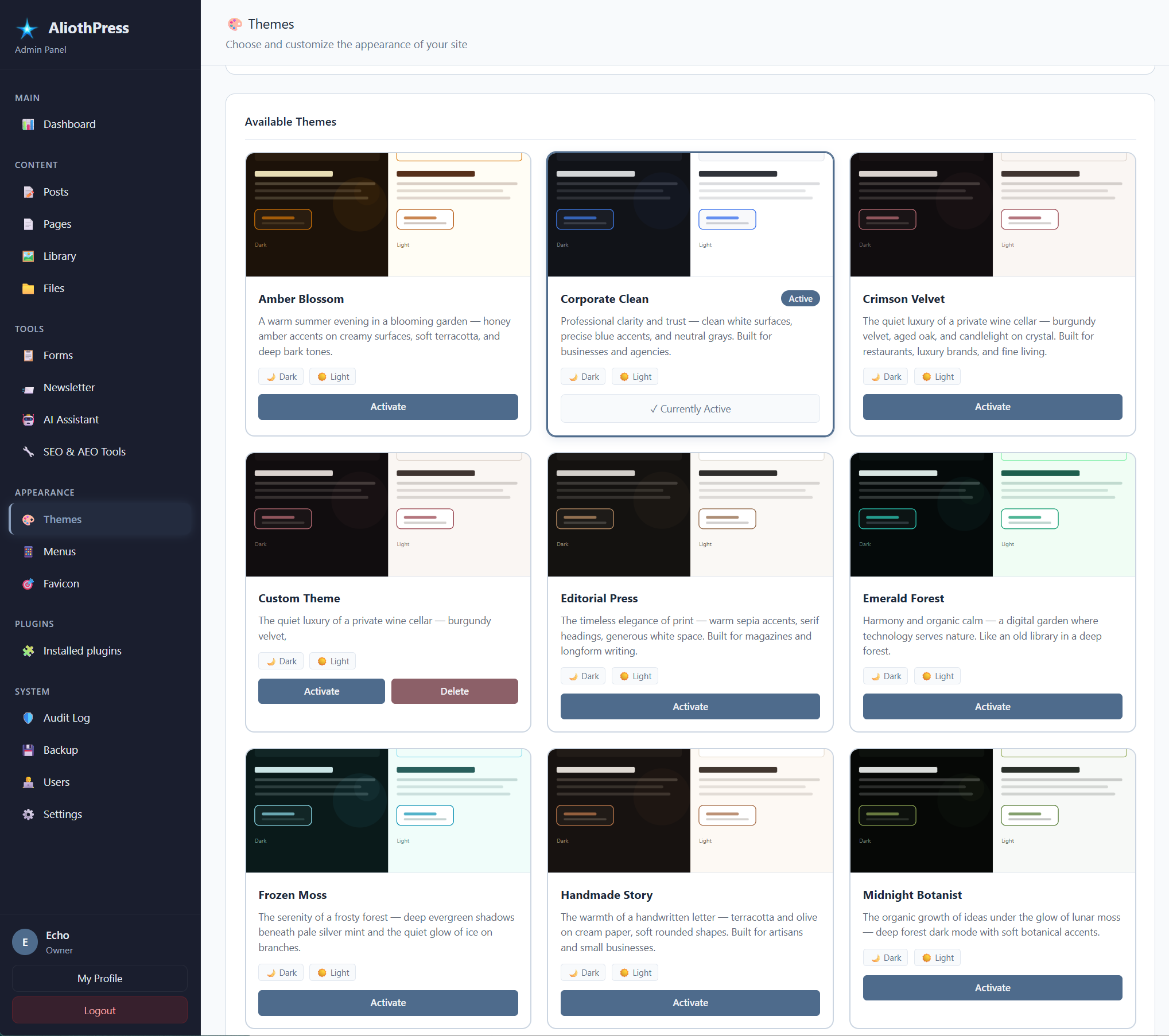
AliothPress ships with 15 built-in themes, and you can add your own. A theme is a small folder with a stylesheet and a preview image. You upload it as a ZIP file on the Themes page in the admin panel, it appears in the theme list immediately, and you activate it with one click. No restart is needed, no terminal, no file manager. Custom themes survive every CMS update.
What a theme is
A theme controls the look of your public site: colors, typography, spacing, and the feel of light and dark mode. The content stays the same across themes, so you can switch designs at any time without touching a single post or page. Every theme that supports both color modes gets the built-in light and dark toggle on your site automatically.
Installing a theme
- Open Themes in the admin sidebar.
- Scroll to Install theme from ZIP and choose the theme's ZIP file.
- Click Install.
The theme appears in the gallery right away, with its preview and description. Activate it whenever you are ready. Uploading a new version of the same theme replaces the old files, so updating a custom theme is the same three steps.
What a theme ZIP contains
A theme is a folder with one required file and one recommended file:
theme.cssholds the entire design. Required.preview.svg(or a PNG, JPG, or WebP image) is the thumbnail shown in the theme gallery. Recommended.
Fonts and images used by the design can live in the same folder. The uploader accepts stylesheets, images, and font files, and quietly skips anything else, so a stray system file in the ZIP never breaks an installation.
Themes and CMS updates
Custom themes live safely alongside the built-in ones. CMS updates refresh the 15 bundled themes and leave your uploaded themes untouched. One naming rule keeps it that way: give your theme a name that differs from the built-in themes. A custom theme that reuses a built-in name would be overwritten the next time those bundled files are refreshed.
Deleting a theme
Custom themes show a Delete button in the gallery. The currently active theme cannot be deleted, so your site can never lose its design by accident: activate another theme first, then delete. Built-in themes have no delete button, because a CMS update would restore their files anyway.
Building and sharing custom themes
Anyone can build a theme for AliothPress. The fastest way is to copy one of the built-in themes and change its colors and typography, and the theme development guide walks through exactly that. Designers can share or sell their themes as plain ZIP files, and installing them takes the same three clicks described above.
For building your own theme, the theme development guide covers the full workflow. New to AliothPress? Install it and explore the 15 built-in designs, then browse the rest of the documentation.