Posts and Pages in AliothPress: Editors, Templates, Publishing
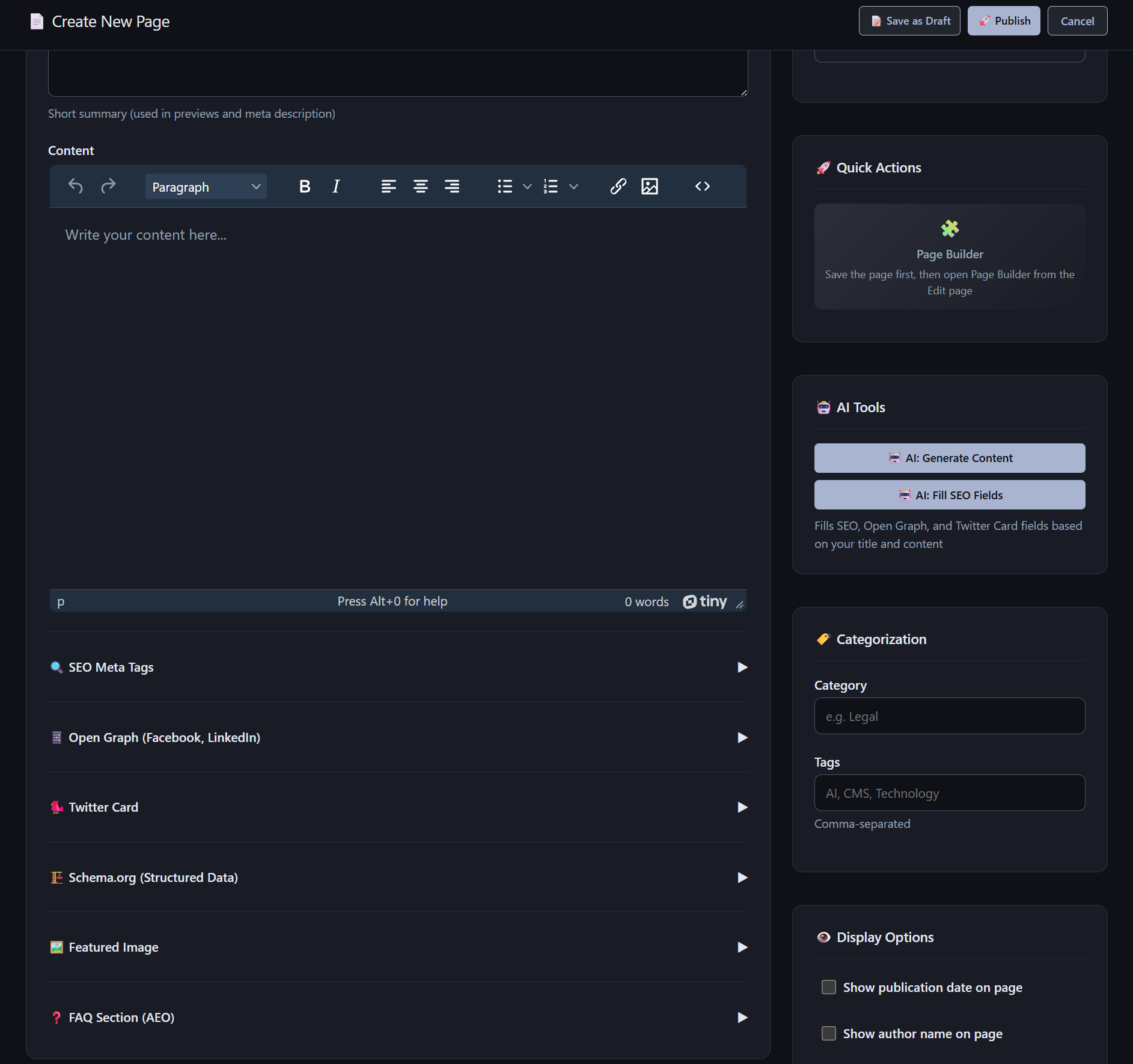
Posts and pages are the two content types at the heart of AliothPress. Both share the same editing workflow: a draft and published status with live preview, a rich text editor or the visual page builder to choose from, a featured image with alt text and caption, an excerpt, tags and categories, a per-item FAQ editor, and full SEO metadata in the sidebar. Pages add layout templates that control content width and a switch that turns any page into a posts feed. Every post and page belongs to a translation group, so all 31 site languages stay linked automatically.
Two editors, one choice per page
Content is written either in the rich text editor or assembled in the visual page builder, and each page or post uses exactly one of the two. The rich text editor suits articles and text-first pages: headings, lists, images, quotes, embedded videos with the privacy facade. The builder suits composed layouts: columns, sections with backgrounds, galleries, forms. The choice stays flexible per item, so a site mixes both freely, and a builder page renders server-side into the same clean, theme-styled HTML as an editor page.
Page templates: choosing the content width
Every page picks a layout template in the sidebar:
Default centers the content in a comfortable 768 pixel reading column, the right choice for text.
Full Width lets content span the full 1200 pixel site container, suited to pages with tables, galleries, or wide imagery.
Landing removes the page header and metadata entirely and spans the full container, giving hero sections and page builder compositions the whole canvas.
Landing Narrow keeps the landing behavior in the narrower column.
Templates change presentation only. Switching a page between them is one dropdown and a save, with the content untouched.
The sidebar: status, translations, and display switches
The right sidebar collects everything about how and where the item appears. Status switches between draft and published, and the preview button shows drafts exactly as visitors will see them, before anything goes live. The Translations panel links the item into its language group. Two display checkboxes control whether the author and the date are shown to visitors on the public page. The underlying metadata stays present in the HTML head and structured data either way, so search engines and AI systems keep receiving authorship and freshness signals even when the visible page stays minimal.
The featured image is chosen from the media library with its own alt text and caption, and it does double duty: social preview crops are generated from it, and on a posts feed it becomes the card image of the post.
Tags, categories, and hub pages
Posts and pages carry tags and a category. Each tag and each category gets its own public hub page listing the content it groups, which gives visitors and crawlers a topical map of the site with zero configuration.
FAQ editor for answer engines
Both content types include an FAQ editor for question and answer pairs. The pairs render as a visible accordion on the public page and become FAQPage structured data, the machine-readable format AI answer engines quote directly. The AI Assistant fills this editor automatically when it generates content, and every pair stays hand-editable.
Turning a page into a posts feed
The "Show latest posts on this page" checkbox in the page settings appends a paginated feed of the latest published posts below the page's own content: twelve per page, newest first, in the page's language. Each card shows the post's featured image as a responsive preview picture, and the feed ships with ItemList structured data. The setting syncs across the page's whole translation group, so the German version of the page shows German posts and the language switcher lands visitors on the matching feed. Any page qualifies: write an intro, tick the box, and it becomes the blog home.
Slugs, canonicals, and safe renames
Slugs are generated from the title, unique across the site, and freely editable. A canonical URL field prevents duplicate content when the same material exists at more than one address. Renaming a published slug is safe: a permanent 301 redirect from the old address appears automatically, as covered in the article on redirects and cleanup.
Posts and pages plug into everything else the CMS does: content arrives with metadata and FAQ pairs when the AI Assistant writes the draft, layouts grow beyond text in the Visual Page Builder, every field described here feeds the structured data explained in Built-in SEO and AEO, and translation groups carry it all into 31 languages, as shown in Multilingual Websites.