Migration to AliothPress with an AI Agent
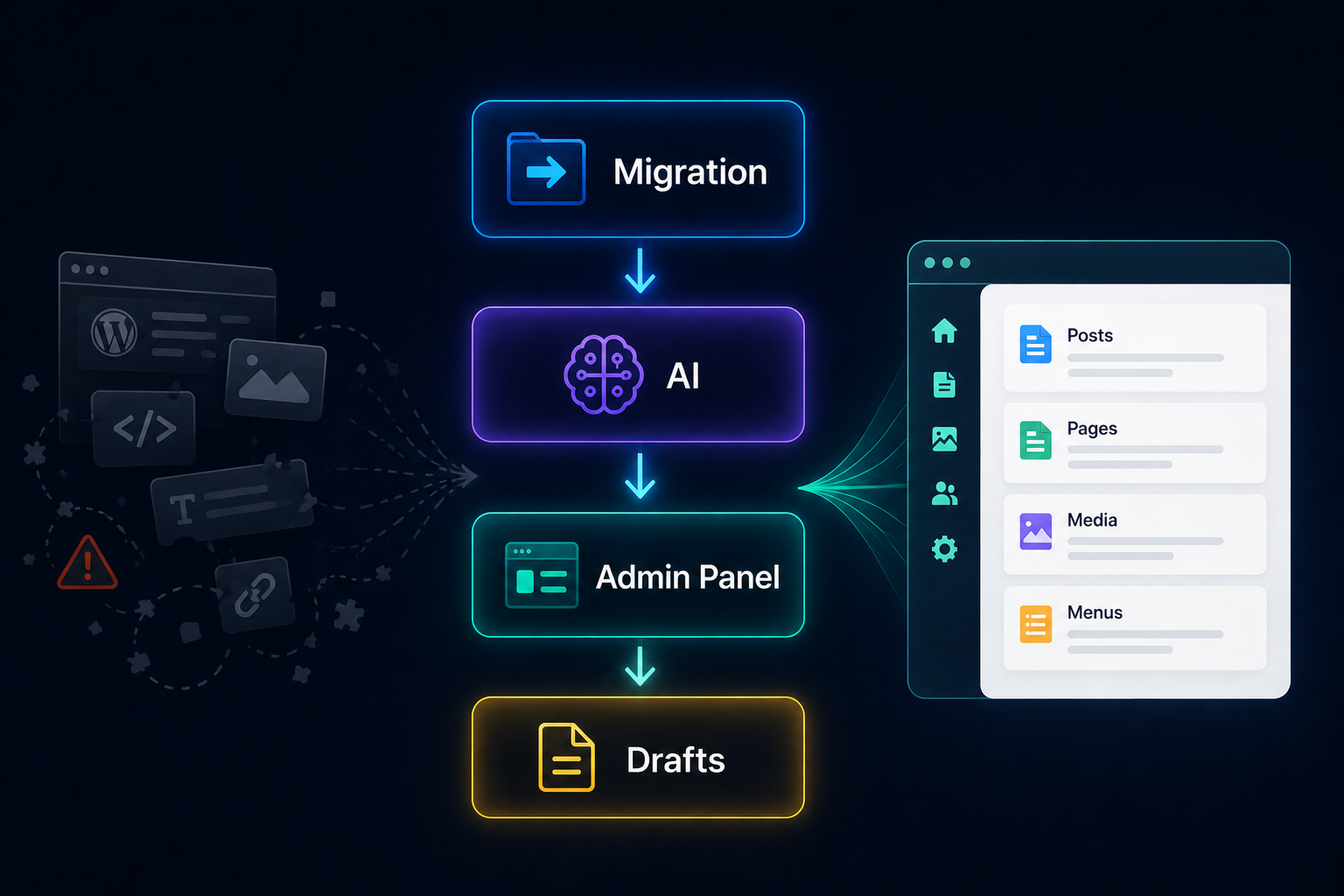
This guide walks through migrating a site from another CMS to AliothPress using an AI agent and the built-in WebMCP tools: no export files, no import plugins, no dependence on whatever your old page builder is willing to give you. The agent does the heavy lifting. You flip two switches, hand it instructions, and approve its work. Everything lands as drafts, and nothing goes public until you publish it yourself.
Your part vs. the agent's part
Read this first, because it is the whole guide in one list. Your part of the migration is six actions:
- Turn on agent access (one switch in the admin panel)
- Sign in to the admin panel in the browser your agent uses
- Hand the agent its instructions (a ready-to-paste prompt is at the end of this guide)
- Answer the approval dialogs, or enable autopilot and let a batch run
- Review the drafts and publish, the one step only you can do
- Turn agent access back off when you're done
Everything else (reading the old site, rewriting content, uploading images, attaching featured and social images, rebuilding layouts, wiring menus) is the agent's job. The "stages" section below describes that work so you know what to expect and what to check, not so you do it by hand.
How this works
A WebMCP-capable agent running in your browser can see two things at once: the old site (as any visitor would) and your AliothPress admin panel (as you, inside your signed-in session). Instead of parsing a database dump, the agent reads each old page the way a careful editor would, rewrites it as clean semantic HTML, and saves it through the same admin routes a human uses, with your confirmation on every write. The old site's markup, inline styles, broken shortcodes, and accumulated mistakes stay behind, because not a single line of its code is copied.
Three properties make this safe for a production site:
- Everything lands as a draft. Agents can never publish. Publish requests are demoted to drafts server-side, independently of anything the agent or its tools claim.
- Every write is approved by you. Single actions show a confirmation dialog, and bulk actions show one dialog for the whole batch.
- Every action is logged. Agent-driven changes appear in the audit log like any other admin action, attributed to your user.
Setup: what you do before the agent starts
- Enable the admin surface. Open the AI Assistant page in the admin panel and turn on Admin panel under AI agent access (WebMCP).
- Make sure your browser's agent can see the tools. Either your browser supports WebMCP natively (paste your origin trial token in the field on the same AI Assistant page), or tick the compatibility polyfill checkbox there.
- Sign in to the admin panel in the browser profile the agent uses. The agent works inside your session and inherits exactly your permissions, nothing more.
- Have the old site reachable in the same browser: publicly, or signed in if the content is behind a login.
No AI provider key is needed. Everything the migration uses works out of the box: the agent brings its own model with it. If you have set up a provider for the built-in AI Assistant, four bonus ai_* tools appear on top (generation, translation, page blocks, SEO), running through the CMS's own engine. Without a provider they simply aren't offered. Every tool the agent sees is a tool that works. Nice to have, never required.
Approvals: what you'll be clicking
Migrations involve dozens or hundreds of writes, so approvals scale instead of multiplying. Here is what you will actually see:
- One dialog per batch, not per item. When the agent creates many posts or pages at once, or uploads a set of images, a single dialog lists every item with a checkbox. Select all, or approve a hand-picked subset. Skipped items are reported back to the agent.
- Autopilot for long runs. Any approval dialog has a checkbox to auto-approve agent actions for 15 or 60 minutes, in that browser tab only. A visible badge counts down. One click revokes it. Only you can enable it (it does not exist as an agent tool), and even under autopilot, publishing remains impossible.
The migration, stage by stage
These stages are the agent's work plan. For each one: what the agent does, and where you come in.
Stage 1: Inventory
The agent walks the old site and produces a list of pages and posts: URL, title, language, whether the page carries images or a designed layout.
You review the list and decide what moves and what doesn't. A migration without an export file is a migration without an attic: outdated pages simply stay behind. This is the single most valuable editorial decision of the whole process, and it is yours.
Stage 2: Content, recreated as drafts
The agent reads each approved page and recreates it with create_posts_batch / create_pages_batch: rewriting the content as clean semantic HTML from the old page's meaning, not pasting its markup, and carrying over titles, excerpts, tags, categories, SEO fields, social card, FAQ, and Schema.org metadata, and the original slugs (so URLs like /about-us keep working). For multilingual sites it migrates one language first, then creates the others linked via translation_of, so hreflang and the language switcher work as if you had translated by hand.
You approve the batch dialog, all items or a subset.
Stage 3: Images
The agent uploads the images with upload_images_batch, a whole set under a single approval dialog (single files go through upload_image), writing descriptive alt text for every image (mandatory, the same accessibility rule the human upload form enforces). Every upload runs through the standard media pipeline: resizing, EXIF stripping, WebP/AVIF variants, SVG sanitizing. Migrated images come out cleaner than the originals. It checks list_media first, so nothing is uploaded twice.
You approve the set in one dialog, all images or a hand-picked subset (autopilot remains handy for very long runs).
Stage 4: Featured and social images
The agent attaches images with attach_image: featured, Open Graph, Twitter card, or all three in one step. Only the image fields change, everything else on the post or page is preserved. Finer fixes (an excerpt here, a meta description there) go through update_post / update_page, which change exactly the named fields.
You approve. Nothing to prepare.
Stage 5: Designed pages, rebuilt natively
The agent does not copy the old page builder's output. It reads describe_builder_blocks (a machine-readable reference of every AliothPress block type: sections, columns, slideshows, galleries, accordions, tables, tickers, forms, and the rest) and recreates each layout natively: many pages at once by passing their blocks to create_pages_batch, single pages with create_builder_page, later changes with set_page_blocks. Language versions of designed pages work the same way: translation_of plus the translated blocks.
You approve, then eyeball the result in the Page Builder: layout taste is a human sport. If you tweak later, the layout lives in the blocks, not the content field. The tools tell the agent the same thing if it tries.
Stage 6: Menus
The agent sets the header and footer menus with build_menu from the new page and post ids, including nesting.
You approve, and this is a good moment to compare against the old site's navigation.
Stage 7: Review and publish
The agent reports what it migrated and anything it skipped or couldn't map.
You read through the drafts, fix what needs fixing (yourself or via the agent), publish from the admin UI (the one step that is yours alone) and switch the admin surface back off on the AI Assistant page.
Keeping your URLs
- Same domain: the old paths were passed as slugs in Stage 2, so URLs simply continue to resolve.
- Changed your mind about a slug later? Editing a slug on an existing post or page makes AliothPress create a redirect from the old slug automatically.
- New domain: redirects from the old domain are a job for the old server's configuration (or your DNS/hosting panel), not the CMS.
The prompt to hand your agent
This is step 3 of your six. Paste it to the agent, adjust the URL, and the stages above unfold from here:
Migrate content from https://old-site.example to this AliothPress admin.

1. List all pages and posts on the old site. Show me the list before doing anything.
2. For each approved item: rewrite the content as clean semantic HTML from
   scratch. Do not copy the old markup. Keep the original slug. Carry over
   title, excerpt, tags, category, meta description, and social and
   Schema.org metadata where they exist.
3. Create everything with create_posts_batch / create_pages_batch (drafts).
4. Upload the images with upload_images_batch (write descriptive alt text
   for every image), then attach featured + OG + Twitter images with
   attach_image (slot: all).
5. Rebuild designed pages natively: pass their blocks to create_pages_batch,
   or use create_builder_page for single pages. Check
   describe_builder_blocks first.
6. Recreate the header and footer menus with build_menu.
7. Report anything you skipped or couldn't map, so I can handle it manually.
Guardrails, recapped
- Agents create and edit drafts only: publishing is blocked in the tool layer and server-side
- Every write is confirmed by you, singly, in batches, or under a time-boxed autopilot that only you can enable and can revoke with one click
- Form submissions (visitor personal data) are excluded from agent endpoints entirely
- Everything the agent does lands in the audit log
- One switch on the AI Assistant page revokes all agent access instantly