CMS Settings and User Profile Explained
The AliothPress Settings page manages the whole site from one place: license and updates, site identity, active languages, analytics with an optional cookie consent banner, email delivery, domain and HTTPS with a free auto-renewing certificate, the footer, and organization identity fields for AI visibility. The personal Profile page adds author identity, admin panel language and theme, and password management. Several of these fields do double duty: what you type into them becomes structured data that search engines and AI systems use to verify who publishes the content and who wrote it. This article walks through each section and explains which fields surface where.
License and Updates
The top section shows the installed version and license status. Enter the purchase code from your marketplace and AliothPress detects the source automatically. Update checks run from a button here, and license keys are stored encrypted.
General: site name, description, logo, and homepage
Site Name, Tagline, and Site Description define the identity: the description becomes the homepage meta description, and the name feeds the Organization entity in the structured data of every page. The logo, picked from the Media Library or pasted as a URL, appears in the site header and in the Organization schema, so search results and AI answers can show the correct brand image.
Homepage selection deserves attention on multilingual sites: pick any language version of any page, and AliothPress serves each visitor the translation matching their language. The homepage follows translation groups like everything else.
Languages
Choose the default language and tick which of the 31 languages are active on the public site. A checkbox controls whether the language selection menu appears for visitors. Admin panel language is a separate, personal choice covered in the Profile section below.
Analytics with consent built in
Fields accept a Google Analytics ID, a Google Tag Manager ID, and a custom tracking snippet for any self-hosted or third-party analytics tool, inserted into the page head. The cookie consent banner is off by default and matters when you enable it: tracking scripts are then rendered inert and execute only after the visitor agrees. Consent management is a core feature and involves no external service.
Email Configuration
SMTP settings connect the site to your mail provider, with a collapsible how-to guide right in the panel and a test send button. Passwords are stored encrypted. The full walkthrough, including what site features depend on email, is in the Connecting Email article.
Domain and HTTPS
Enter your domain, point its A record to the server, and one click obtains a free Let's Encrypt certificate. Renewal is automatic, and the panel shows the current HTTPS status. The three-step instruction is printed under the button, so the whole process happens without a terminal.
Footer
The copyright line takes just your company or site name. The year and the "All rights reserved" phrase are added automatically and translated into the visitor's language. An optional license line (for example a Creative Commons notice) renders beneath it. Six social profile fields produce footer icons for the links you fill, and an additional footer content area accepts HTML for anything else.
Social links do a second job: every filled URL joins the Organization's sameAs list in the structured data, connecting the site to its official profiles.
AI Visibility: identity for answer engines
This section exists for one purpose, stated in the panel itself: helping AI systems verify your organization and cite your content accurately. Wikipedia, Wikidata, and Crunchbase URLs join the Organization's sameAs list alongside the social profiles, giving crawlers independent sources that confirm the entity behind the site. Legal Name and Founding Year become the legalName and foundingDate properties of the same Organization entity, on every page where it appears. Fill what exists. Empty fields are simply omitted from the output.
Your Profile: author fields become Person schema
The Profile page opens with the Author Profile block, and its fields feed the Person entity in the structured data of everything you publish:
- Display Name is the public author name on posts and in schema.
- Bio becomes the author description that search engines and AI systems read to establish expertise.
- Avatar is the author image in the markup.
Author Links (LinkedIn, personal website, GitHub) build the Person's own sameAs list. An article signed by an author whose profile links to verifiable external identities carries more weight with ranking and answer systems than an anonymous one, which is exactly why these fields are worth two minutes of your time.
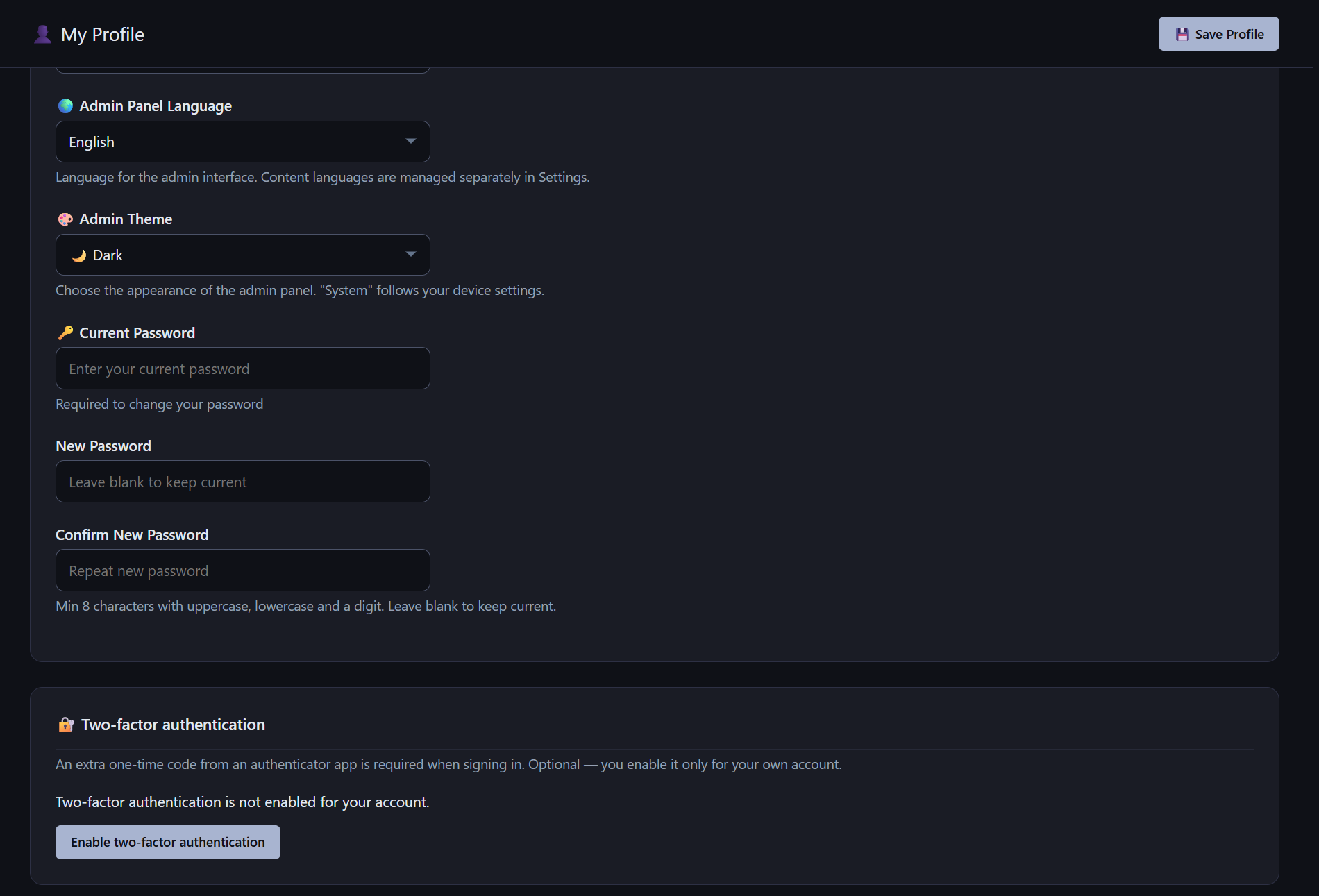
Account Settings on the same page hold the practical part: the immutable username, email address, personal admin panel language (any of the 31, independent of the site's public languages), admin theme (light, dark, or system), and password change. The policy requires at least 8 characters with an uppercase letter, a lowercase letter, and a digit, and the current password must be entered to set a new one. Changing the password ends all active sessions for the account. When the owner has enabled two-factor authentication for the site, the profile is also where each user switches it on: scan a QR code with an authenticator app, confirm one live code, and store the recovery codes shown once.
Key facts about AliothPress settings
One Settings page covers license, site identity, languages, analytics with an opt-in consent banner that gates tracking scripts, SMTP email, one-click Let's Encrypt HTTPS, footer, and organization identity for AI visibility. Site name, logo, Legal Name, Founding Year, social links, Wikipedia, Wikidata, and Crunchbase URLs feed the Organization entity. Profile name, bio, avatar, and author links feed the Person entity. Structured data is assembled from these fields automatically on every published page.