2FA Lockout: How to Get Back Into Your Account
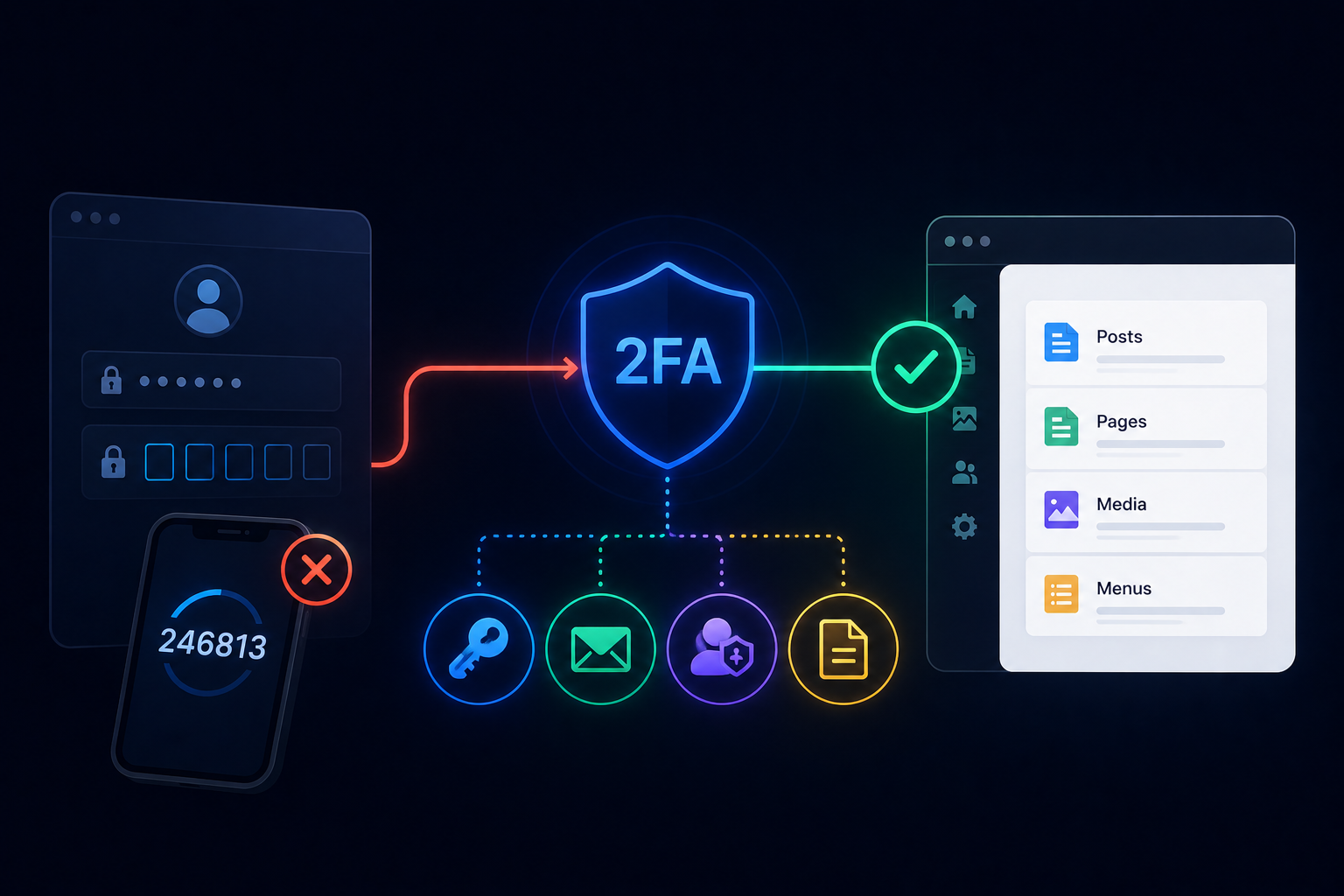
You type your password, the code screen appears, and the code does not work. Or the phone with the authenticator app is gone. This page lists every way back into an AliothPress account, from the fastest to the last resort. None of them requires reinstalling anything, and no content is lost along the way. How the feature works under the hood is covered in the Security article.
Check the clock first
The most common cause of a rejected code is not a lost secret. It is a drifting phone clock. One-time codes are computed from the current time, and the server accepts about 30 seconds of drift in each direction. If the phone clock is off by more, every code arrives dead. Turn on automatic date and time on the phone, then try the next code the app shows.
Also know the attempt limits. A pending sign-in dies after 5 wrong codes or after 5 minutes. That is not a lockout. Go back to the login page, enter the password again, and you get a fresh attempt.
Option 1: use a recovery code
During setup, AliothPress showed you ten recovery codes and asked you to store them. Each looks like XXXXX-XXXXX and works exactly once. Enter one into the same "Code" field on the verification screen. The hint under the field reminds you of that. Lowercase letters and a missing hyphen are fine, the input is normalized. Once you are in, treat the used code as spent. If only a few codes remain, set 2FA up fresh to get a full new set.
Option 2: a one-time code by email
Under the code field there is a button labeled "Send a one-time code to my e-mail". Click it and a six-digit code goes to the email address of your account. It stays valid for 10 minutes and works once. Two conditions apply. The site's SMTP connection must be working, and the email fallback must be allowed in Settings. It is allowed by default. If the button is missing, the owner has switched the fallback off.
Option 3: ask an Owner or Admin to reset your 2FA
Any Owner or Admin can open the Users page and press "Reset 2FA" next to your account. Your second factor is removed, and a notification email tells you it happened. Sign in with your password alone, then set 2FA up again in your profile with the working device. One boundary applies. An Admin cannot reset the Owner's 2FA. That direction is reserved for the Owner.
Option 4: the DISABLE_2FA file for a solo owner
If yours is the only account with full access and every other path is closed, there is a deliberate break-glass mechanism. Open the file manager of your hosting panel. In the folder where app.py lives, create an empty file named DISABLE_2FA. The exact name, no extension. No server restart is needed. Signing in now skips the second step, and the panel shows a clear warning on every login. The bypass is also written to the audit log, so it never happens silently.
Then clean up. In your profile, disable 2FA with your current password and set it up again with the working device. Delete the DISABLE_2FA file right after. The warning disappears and the second factor is enforced again.
After you are back in
A reset or a fresh setup always generates a new secret and ten new recovery codes. The old entry in the authenticator app and the old codes are useless, so delete them to avoid confusion. Trusted browsers are signed off automatically, and every device asks for a code again on the next sign-in. A minute in the audit log is also worth it. Failed second-step attempts are recorded there with the IP address, so you can see whether anyone else was knocking.
Three habits that prevent the next lockout
Store the recovery codes in a password manager, not in a note on the same phone that holds the authenticator. Send yourself a test email from Settings once in a while, so the email fallback stays real. And on team sites, keep at least two accounts with the Admin role. Then a reset is always one click away.
Key facts about 2FA recovery in AliothPress
Rejected codes usually mean clock drift, so fix the phone time first. A pending sign-in expires after 5 wrong codes or 5 minutes, and a fresh login restarts it. Recovery codes go into the regular code field and work once each. The email button sends a six-digit code valid for 10 minutes. An Owner or Admin resets 2FA from the Users page, and an Admin cannot do this to the Owner. A solo owner creates an empty DISABLE_2FA file next to app.py, signs in, repairs 2FA, and deletes the file. Every reset produces a new secret and new recovery codes.